Crystal Reports
Crystal Reports is an application from SAP for creating reports. This application requires Crystal Reports and must therefore be downloaded from SAP.
Here you can download the official documentation for Crystal Report:
💡
A license is required to create reports in Crystal Reports
Import CRDataSet.xml
To have all fields in the Crystal Report available for selection, we must first add the G_DATA\RPT\CRDataSet.xml:
- Open Crystal Reports
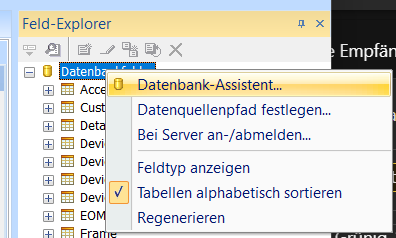
- In Field Explorer, right-click on Database Fields and select Database Wizard
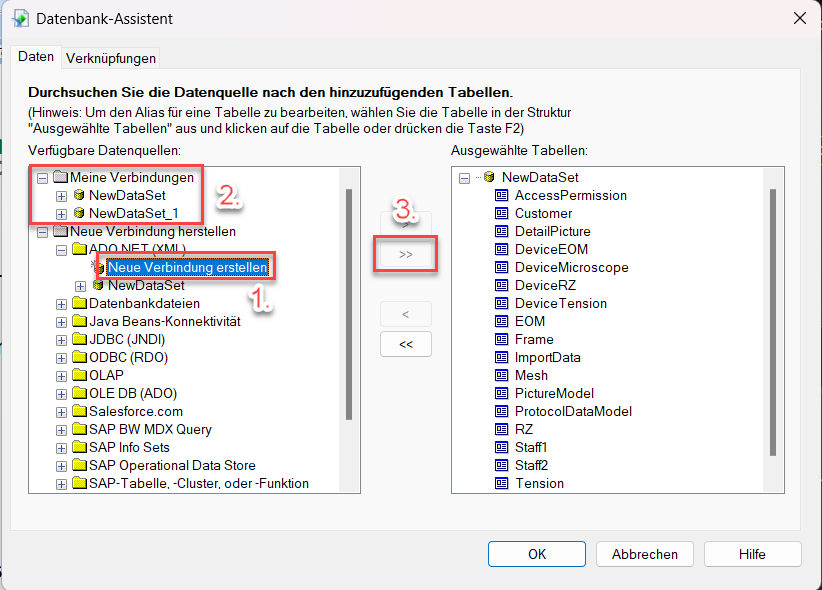
- Create a new connection and select ADO.NET (XML)
- Enter the path to
CRDataSet.xmland press Finish - Now there should be a new object called NewDataSet under My Connections
- Select this object and select all (move to the right)
- Click OK and then all fields should be visible under Database Fields (in Field Explorer)
- Place fields on the report
Reimport CRDataSet.xml
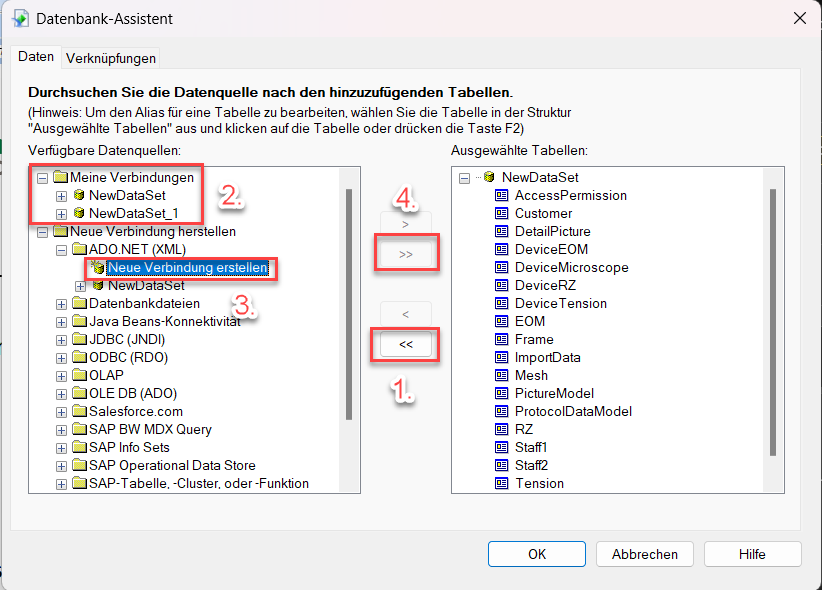
If there are problems with the report or new fields are added in CRDataSet.xml, then you should add and place all fields again:
- Remove all fields
- Delete all existing data sets
- Link new
CRDataSet.xml - Select current data set and add fields
Link image
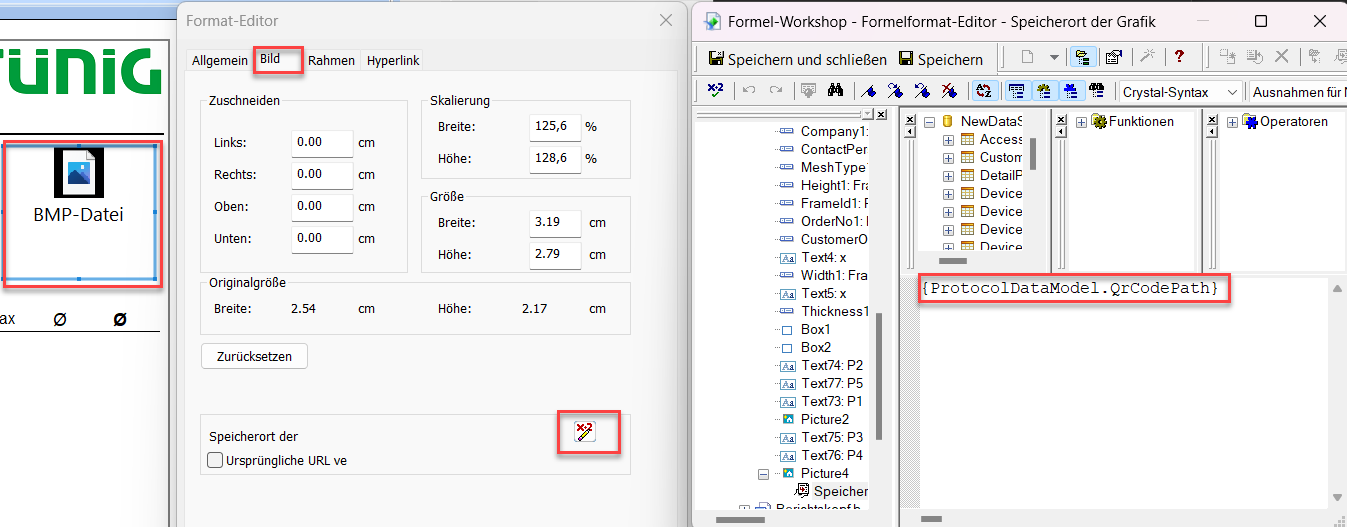
To link images to the report with a variable from CRDataSet.xml, you can do the following:
- Select the graphic and right-click and select Format Graphic
- Then go to Image and select Formula Format Editor under Storage Location
- Insert the variable that contains the path to the image
Test Report
Here you can download a test report to start creating the report: